
Demo websites
Terrifico documentation
Demo websites Pro
Browse the documentation
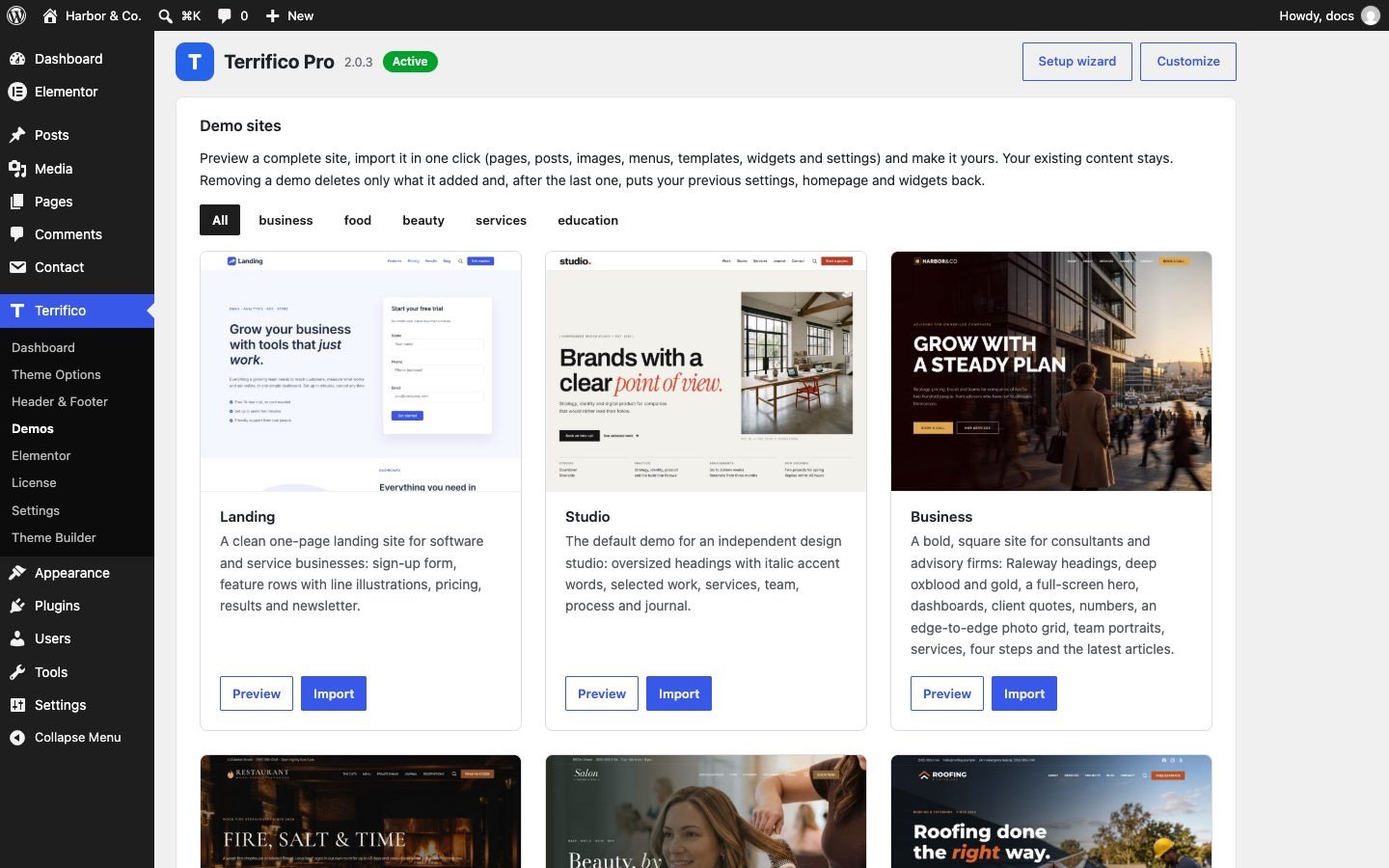
Terrifico Pro includes nine complete websites: Landing, Studio, Business, Restaurant, Salon, Roofing, Corporate, School and Dentist. Each one brings its pages, images, menus, header and footer, a contact form and matching settings. You can preview them all here.
Import a demo
- Go to Terrifico → Demos.
- Click Live preview on a card to see the demo on desktop, tablet and phone widths.
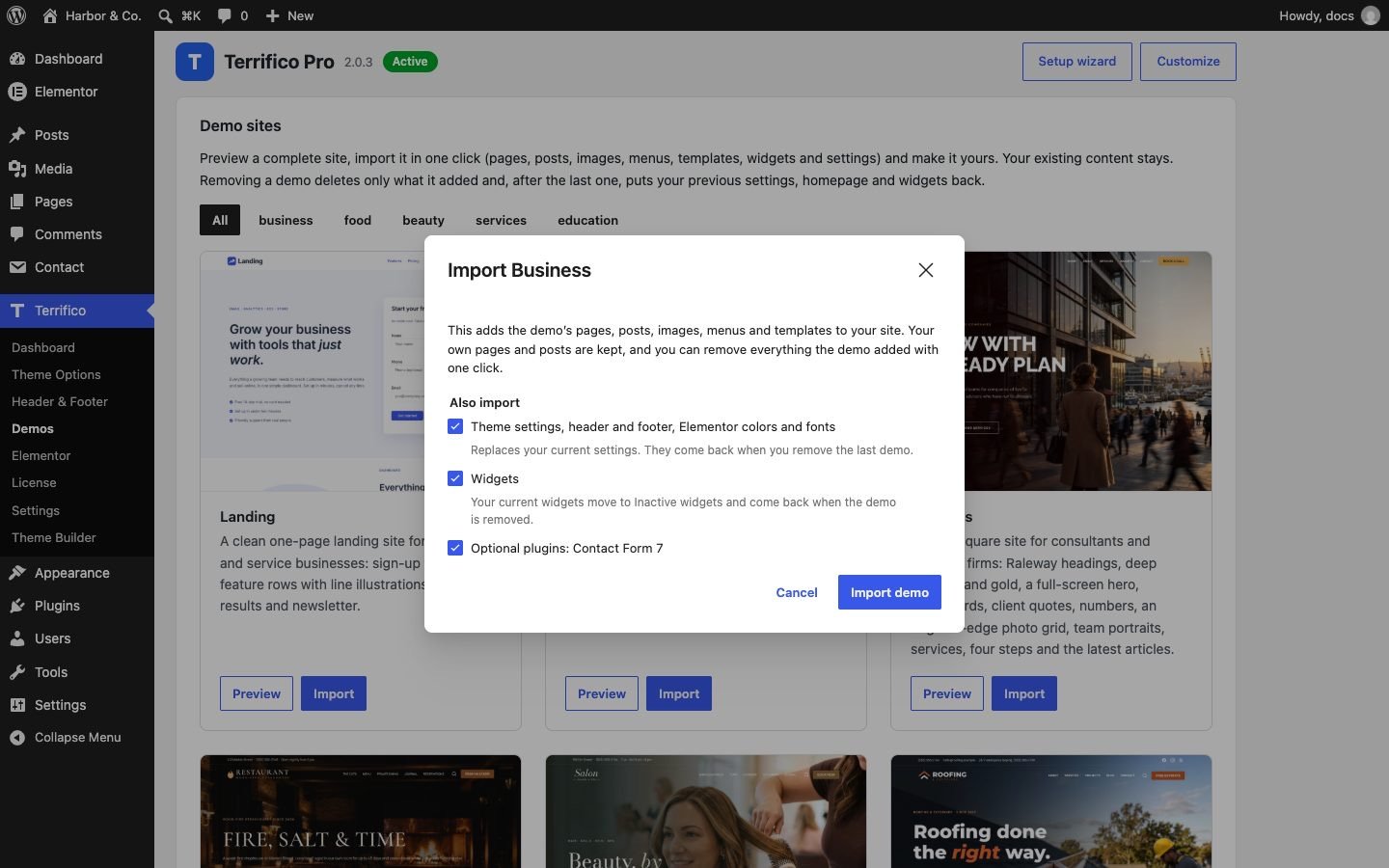
- Click Import and choose what to bring in:
- Settings: the demo’s colors, fonts, header, footer and other Terrifico settings.
- Widgets: the demo’s footer widgets.
- Optional plugins: plugins the demo can use but doesn’t need, such as Contact Form 7.
Required plugins, usually Elementor, are installed and activated for you.
- Follow the progress bar. If the import stops (a slow host, a closed tab), open Demos again and continue where it left off.
Your site title, tagline and users are never changed. Your own pages and posts stay; the demo’s homepage becomes the front page.

Remove a demo
Click Remove on an imported demo. Everything the demo added is deleted: its pages, posts, images, menus, Theme Builder templates and widgets. When you remove the last demo, your earlier Terrifico settings, homepage, widgets, logo and Elementor kit come back.
Importing a demo again replaces the earlier copy of the same demo.
Good to know
- Every demo downloads from our store and imports once your license is activated. The 14-day evaluation does not include demo imports.
- Demo photos are for previewing the design. Replace them with your own before you publish.
- Developers can import and remove demos with WP-CLI:
wp terrifico-demo list,wp terrifico-demo import <slug>andwp terrifico-demo remove <slug>.