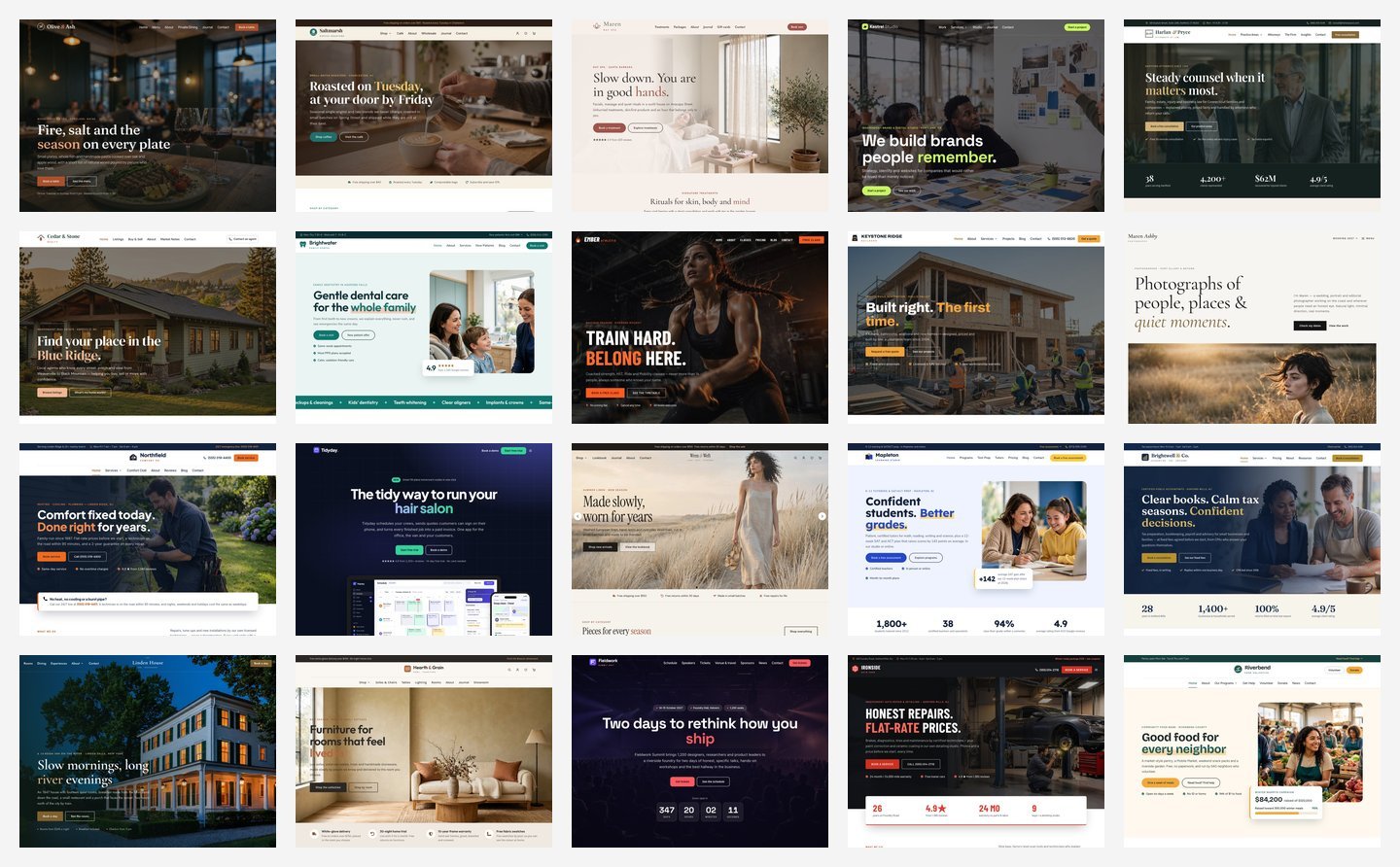
Significo Pro includes 20 complete demo websites: Agency, Law Firm, Accounting, Real Estate, Restaurant, Hotel, Coffee Shop, Fashion and Home Decor (the three with a WooCommerce shop), Spa, Dental, Fitness, Construction, HVAC & Plumbing, Auto Repair, SaaS, Events, Tutoring, Nonprofit and Photographer. Each brings its pages, images, menus, forms, popups and the theme settings that make it look the way it does.
Import a demo
- Go to Significo → Demos. Click a demo to see it larger.
- Click Import and choose what to bring in:
- Settings: the homepage, menus, theme options, logo, and Elementor’s colors and fonts.
- Widgets: sidebar and footer widgets.
- Plugins: installs and activates the plugins the demo needs, such as Contact Form 7 or WooCommerce.
- The import runs in steps. If the tab closes, click Import again and it carries on where it stopped.
Import on a fresh site where you can. On a site with content, your own pages and posts stay; the demo adds its own next to them.
Remove a demo
Everything a demo adds is tagged, so Remove deletes exactly that and puts back your previous homepage, menus, theme options and Elementor site settings.
Good to know
- One demo at a time works best. You can import a second one on top, but the menus, homepage and settings follow the last one; remove them in reverse order.
- Shop demos bring their own Shop, Cart, Checkout and My account pages. Your own WooCommerce pages move to the trash while the demo is installed, so the demo’s pages keep the usual addresses, and come back when you remove it. Products arrive with their reviews.
- New WooCommerce shops start in Coming soon mode, which hides the shop from visitors. Switch it off under WooCommerce → Settings → Site visibility when you are ready.
- Demo photos are for previewing the design. Replace them with your own before you launch.