Significo can build your home page from sections, without a page builder: a hero, services, about, how it works, testimonials, latest posts, questions, contact and a call to action. You arrange them in Customize → Front Page and edit each one with a live preview.
The sections show on a static front page. If your homepage shows your latest posts, choose A static page under Customize → Homepage Settings first.
Arrange the sections
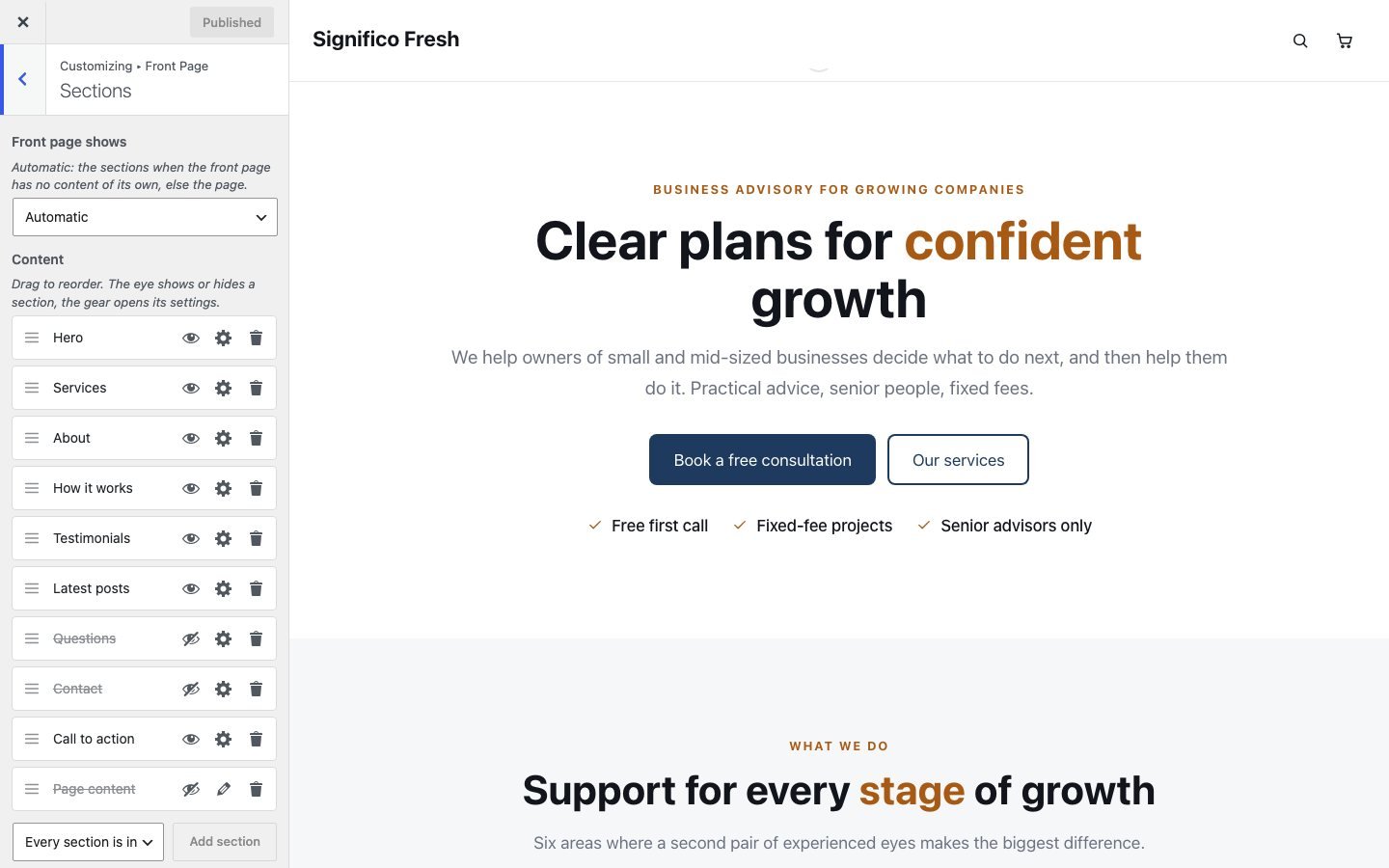
Open Customize → Front Page → Sections. Each row in the list is one section:
- Drag a row by its handle to move it, or use the arrow keys on the handle.
- The eye shows or hides a section. A hidden section keeps its text.
- The gear opens the section’s settings.
- The bin removes it from the list. Bring it back with Add section at the bottom.
- Page content is the text of the front page itself; show it to place your own page content between the sections.
Start from a layout
Choose a layout, below the list, sets which sections show and in what order:
- Starter: everything, from services to the latest posts.
- Business: services first, proof and answers, then a call to action.
- Local: for a shop or practice: about, services and how to reach you.
- Simple: a short page with a hero, about and a call to action.
- Journal: latest posts up front, for a blog or news site.
Your text stays as it is. Tick Also put back the Starter text and pictures of these sections to reset them too. Nothing is saved until you publish.
Edit a section
- Most sections have a line above the title, a title and an intro. Put a word in
{braces}to show it in the accent color, for exampleClear plans for {confident} growth. - Lists such as services, steps, testimonials, numbers and questions are repeaters: add, remove and drag items in the section’s settings.
- Background sets each section on white, a light surface, dark or your brand color. Text and cards adjust so they stay readable.
- The hero has its image on the right, on the left, or no image with centered text.
Which page shows
Front page shows, at the top of the Sections panel, decides what visitors see:
- Automatic (the default): the sections when the front page has no content of its own; otherwise the page as you built it.
- The sections: always the sections.
- The page as it is: never the sections, for a front page built in Elementor or the block editor.