A layout is an Elementor design for one part of your site. Significo Pro lets you design every part this way, with the free Elementor plugin. Find them under Significo → Layouts.
| Type | Where it shows |
|---|---|
| Header, Footer | At the top and bottom of the pages that match its conditions. |
| Single | Posts, pages, portfolio projects or other content. |
| Archive, Search results, 404 page | The blog and category pages, search results, and the page-not-found page. |
| Single product, Product archive | WooCommerce product pages, the shop and product categories. |
| Popup | A window that opens on its trigger; see Popups, mega menus & panels. |
| Mega menu | A wide dropdown under one menu item. |
| Off-canvas | A panel that slides in from the side, opened by a button. |
| Section | A reusable block you place on any page. |
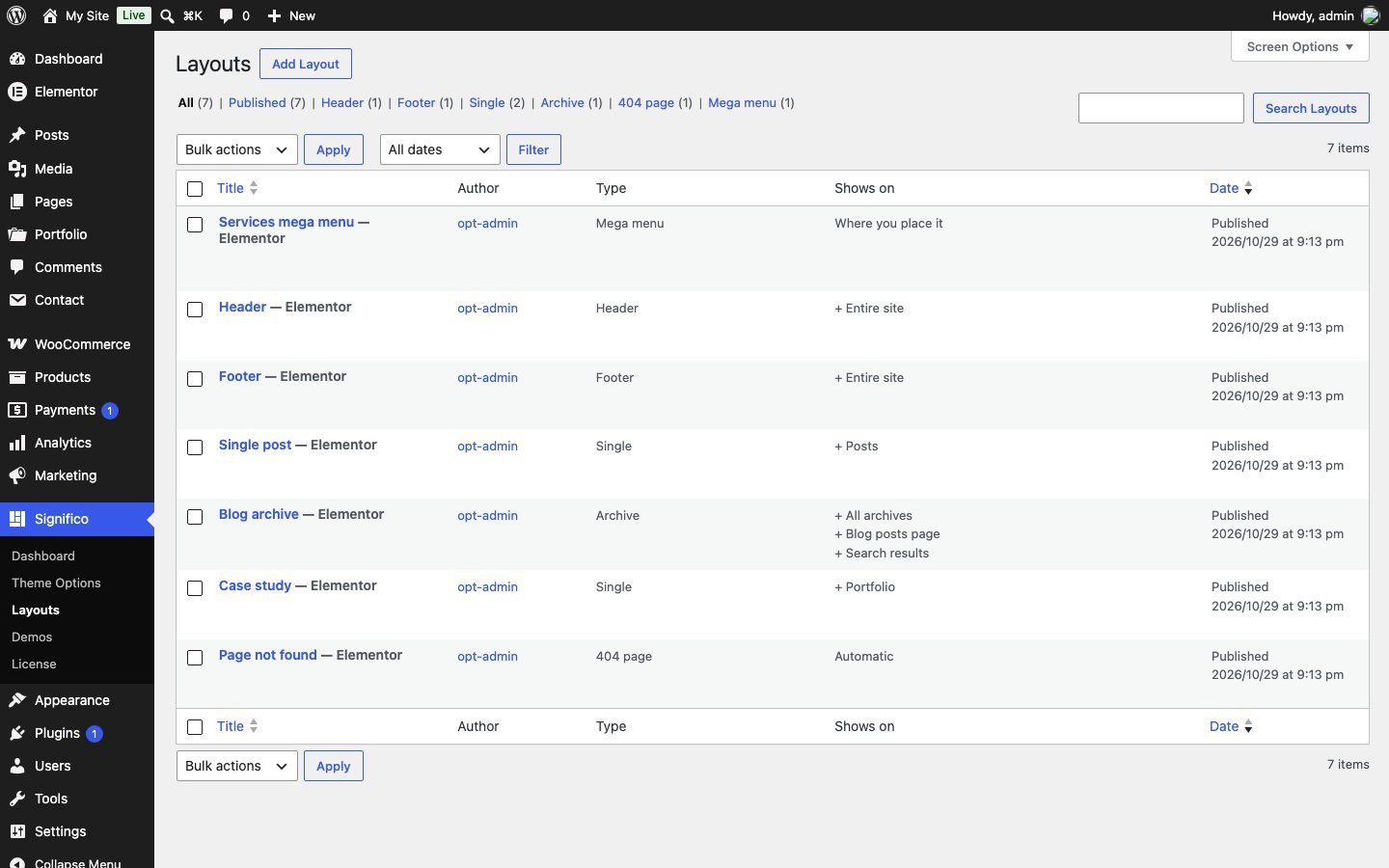
Create a layout
- On Significo → Layouts, type a name, pick the type and click Create and edit with Elementor.
- Design it. The Significo site widgets (Site Logo, Nav Menu, Search Form, Breadcrumbs) and post widgets (Post Title, Post Content, Post Meta, Featured Image, Archive Posts and more) are made for this; see Elementor widgets. You can also start from a section in the Section library.
- Set the display conditions and publish.
Display conditions
Open them in Elementor under Settings (the gear) → Significo layout, or in the box on the layout’s edit screen.
- Include rules say where it shows: the entire site, the front page, the blog, a post type, specific posts, archives, a category or tag (or specific ones), author, date, search or 404 pages.
- Exclude rules take places out again, for example the entire site except the front page.
- When two layouts match the same page, the more specific rule wins: a single page beats “all pages”, which beats “entire site”. On a tie, the lower Order wins.
- Preview with picks the post whose content the post widgets show while you edit.
Header behavior
Header layouts have their own Header behavior settings in Elementor’s Settings: sticky (always visible, or shown when scrolling up), transparent (on every page or the front page only), shrink when scrolled, and a background color once scrolled.
Layouts and theme options
Significo → Theme Options has a layout picker for the header, footer, posts, the blog and archives, the shop and the product page. Each one offers:
- By conditions (the default): layouts show where their display conditions match.
- A layout: use that one everywhere.
- Theme template (no layout): turn layouts off there and use the theme’s own design, styled by the theme options.
Where a layout draws a part of a page, its design replaces the theme options for that part; the Theme Options screen shows a note when that is the case.