Firmness has two designs. They share your content and your settings, so switching never converts anything.
Modern
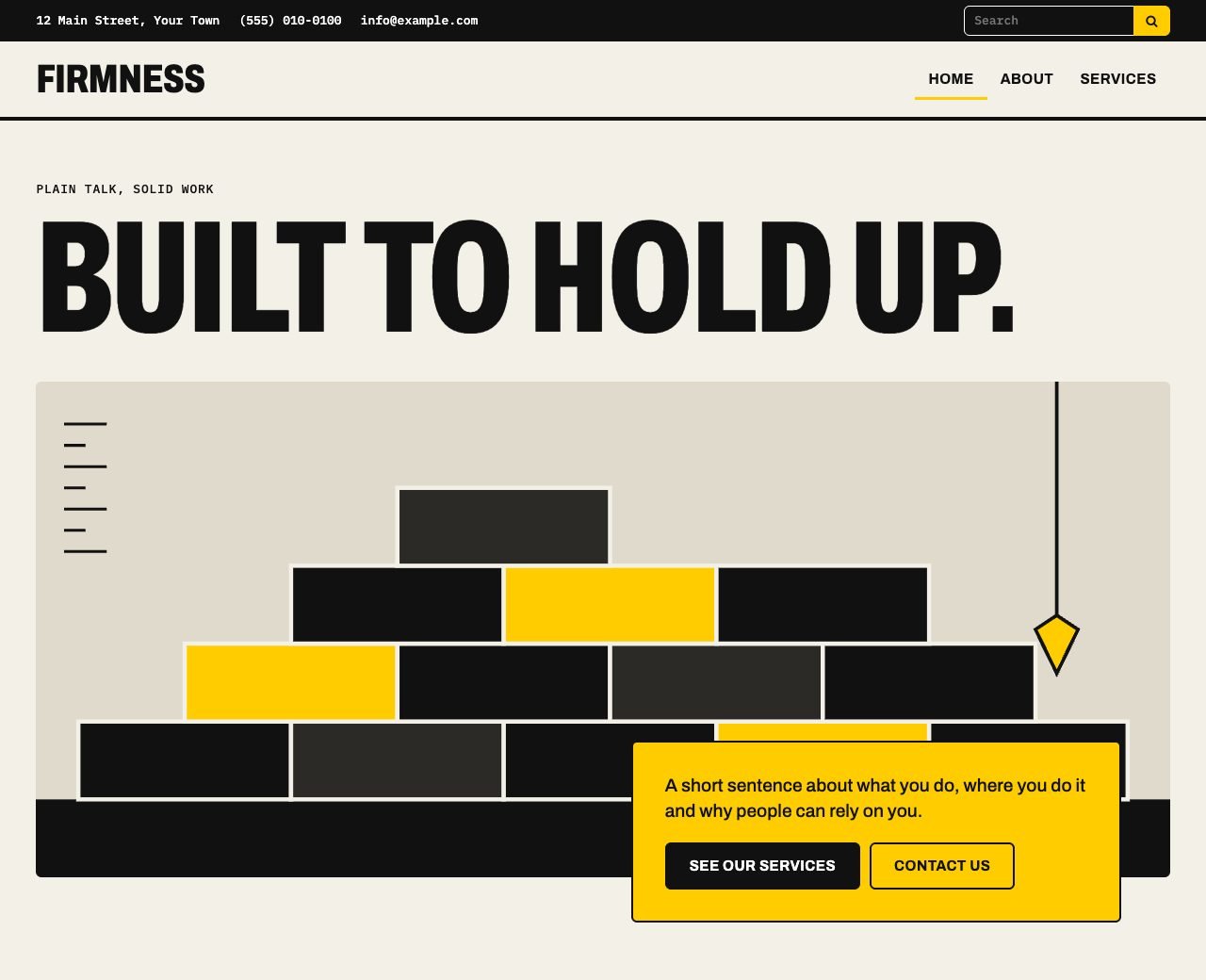
Modern is what a new site starts on. It uses oversized condensed headlines in Archivo, small labels in IBM Plex Mono, thick rules and one signal color you choose.
Classic
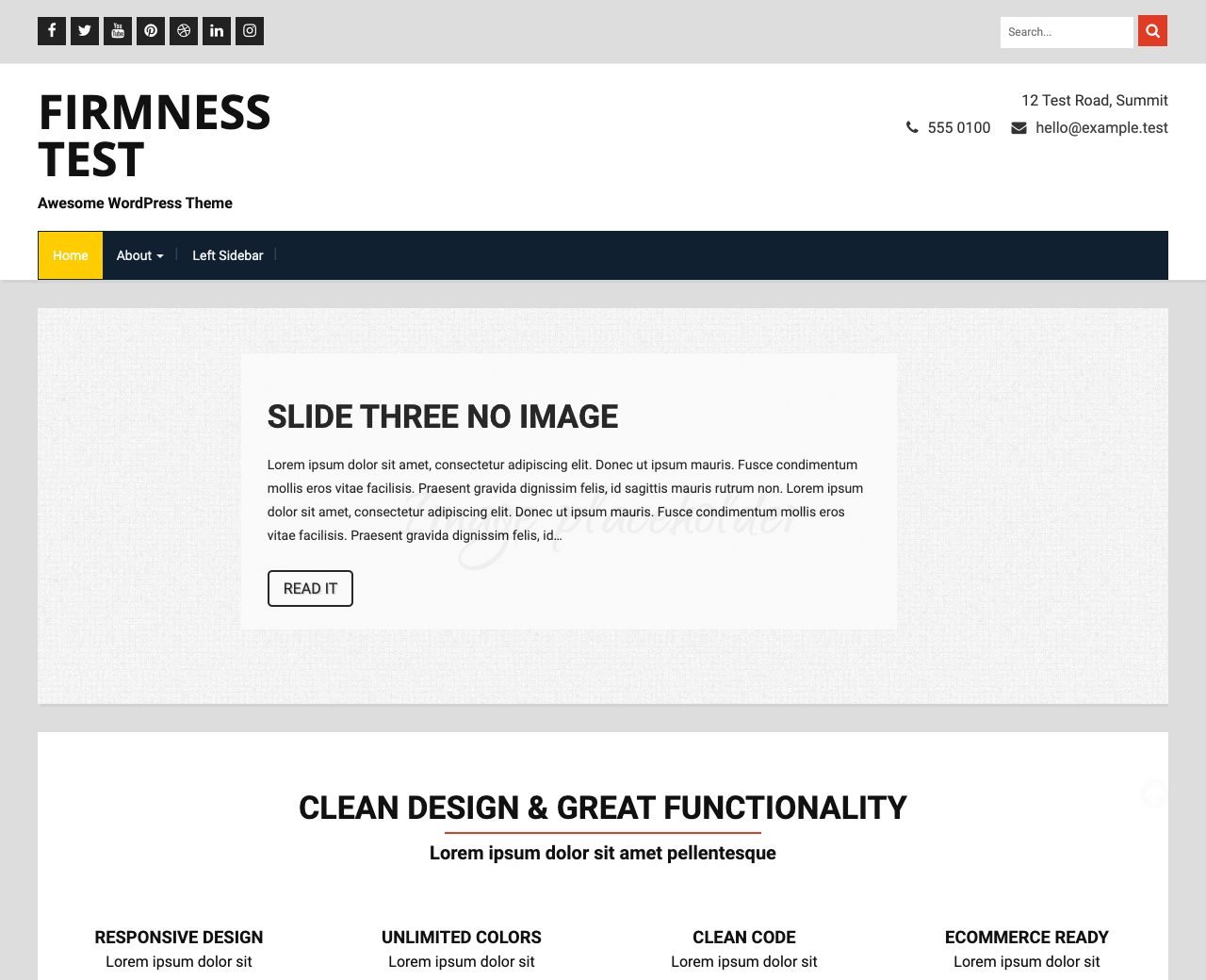
Classic is the look Firmness has had since 2014. A site updating from 1.x stays on it. Classic has the fuller set of style controls: colors for most parts of the page, plus logo, menu and body fonts.
Switch designs
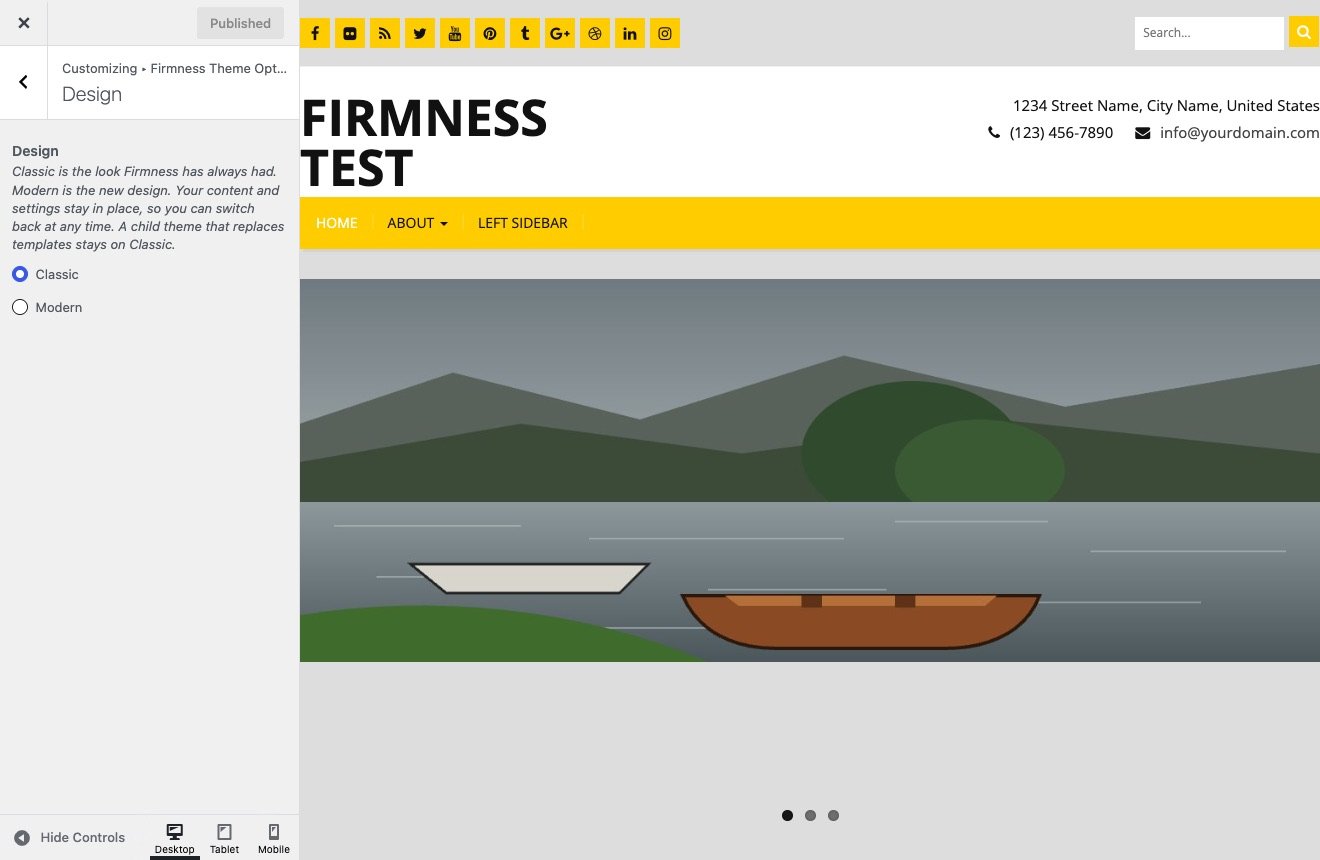
- Go to Appearance → Customize → Firmness Theme Options → Design.
- Choose Classic or Modern. The preview shows the result.
- Click Publish to keep it, or close the Customizer to discard it.
The choice is stored on its own, and nothing else is written. You can switch back at any time.
What changes in the Customizer
Settings that only one design uses are hidden while the other design is active. They keep their values.
- Only on Classic: the Navigation Settings and Typography Settings sections, most color fields, the logo size and font fields, the slider height and the caption position and color fields.
- Only on Modern: the home page opening fields at the bottom of Image Slider Settings.
- On both: section text, icons, links and on/off switches, Theme Color, the header contact details, blog options, the layout and social links.
On Modern, Theme Color in General Settings is the signal color. Text on it turns dark or light by itself, so it stays readable.
When an updated site tries Modern
- Text and links you saved stay. A field you never changed shows Modern’s sample text instead of the 1.x sample text, so read through the home page.
- The home page opens with slides from your posts, as your slider did. To use a headline and image, see Home page and opening.
- Social icons only show for networks where you entered a link.
Child themes
A child theme with templates of its own stays on Classic, and the Design choice is hidden. See Child themes.