Each section has its own entry in the Firmness Theme Options panel. Turn sections on and off in Home Page Settings. On Classic, each section also has color fields for its background and text. They are hidden on Modern, which takes its colors from the design and your Theme Color.
Features Section
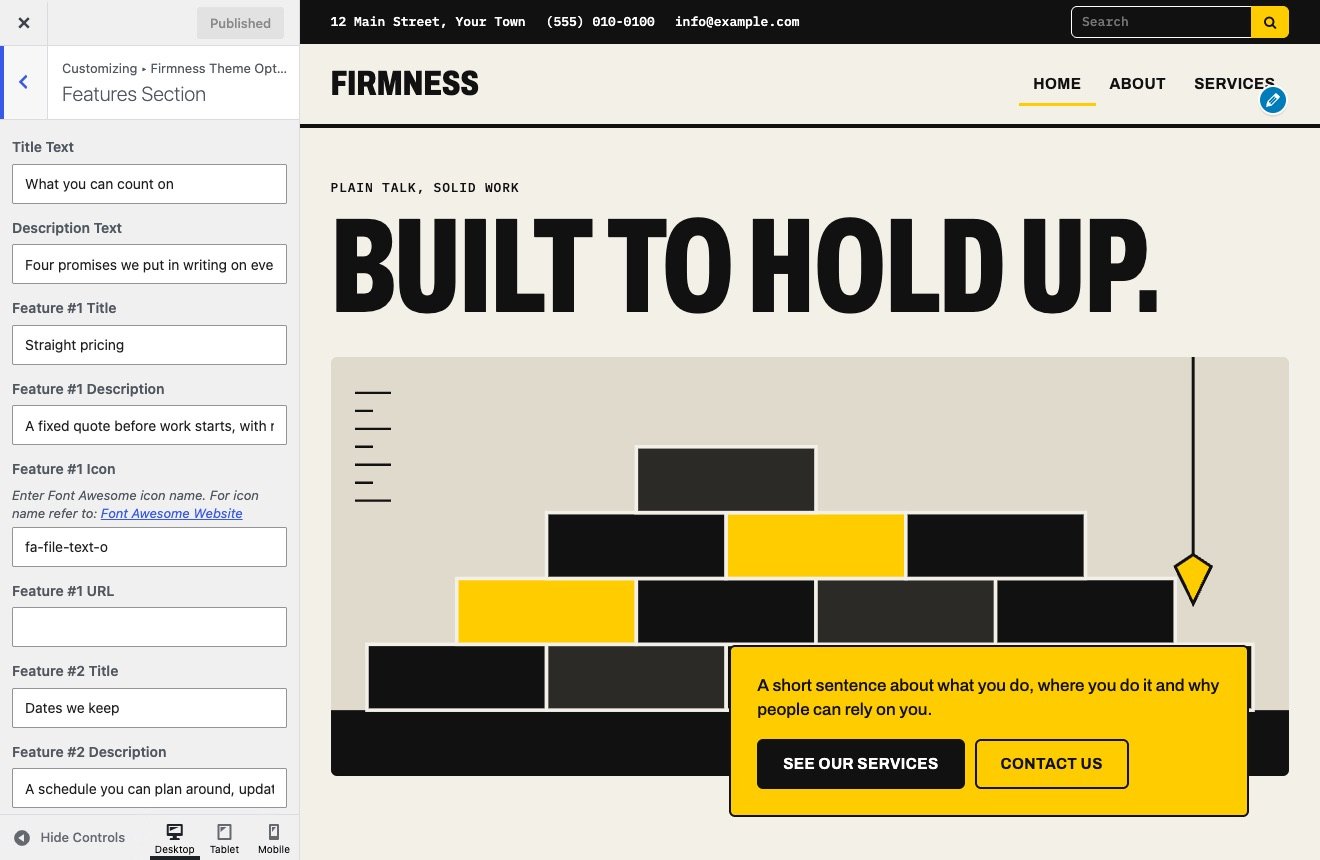
- Title Text and Description Text
- For each of the four features: Title, Description, Icon and URL. With a URL, the title becomes a link on Modern and the icon becomes a link on Classic.
- Classic also lists an Image field for each feature. It has no effect, as in 1.x.
About Us Section
- Title Text
- Section Text
On Modern the text is set large on a dark band, so a few sentences read better than several paragraphs.
Services Section
- Section Text is the section’s title, despite the label. Description Text is the paragraph below it.
- Section Image
- For each of the four services: Title, Description and Icon
Call To Action Section
- Small Header Text
- Big Header Text
- Button Text and Button URL
Theme Content Boxes Section
Three columns, each with a Header, Text, Image and URL. Despite its label, the Image field takes an icon name, not a picture. On Modern, a column with a URL gets a Read More link. On Classic, the Read More button always shows.
Latest News Section
- Title Text
- Latest News Category: one category, or all of them
- Number of Posts
On Modern, the newest post appears large beside a ruled list of the others. The section is left out when there are no posts to show.
Icon names
Icon fields take a name from Font Awesome 4, with its prefix, such as fa-wrench or fa-shield. Icons added in later Font Awesome versions won’t show.