
Setting up the front page
Modality documentation
Setting up the front page
Browse the documentation
The Modality front page is a stack of sections: an image slider, a get started bar, features, about, services, a call to action, content boxes, get in touch, latest news, your page content and your blog posts. You choose which ones show and in what order.
Two ways to use the sections
1. Home page shows your latest posts
This is how Modality 1.x worked, and it is still the default. Keep Settings → Reading → Your homepage displays on Your latest posts. The sections appear above your posts.
2. A static page with the Modality Front Page template
- Create a page (for example “Home”). In the editor’s Template setting, choose Modality Front Page.
- In Settings → Reading, choose A static page and select that page as the homepage. Pick another page as the posts page if you have a blog.
The page now shows the sections, and the page’s own content appears where Page content sits in the section order. You can use the template on any page, not only the homepage.
A static homepage with the default template shows only its content, without sections. That is also how 1.x behaved.
Turn sections on and off, and reorder them
Go to Appearance → Customize → Front Page Sections → Home Page Settings.
- Tick the sections you want, such as Enable Image Slider or Display Features Section.
- Use the up and down buttons in Section order to change the order. They work with the keyboard too, and the preview follows.
- Fixed (parallax) section background images keeps background images still while the page scrolls.
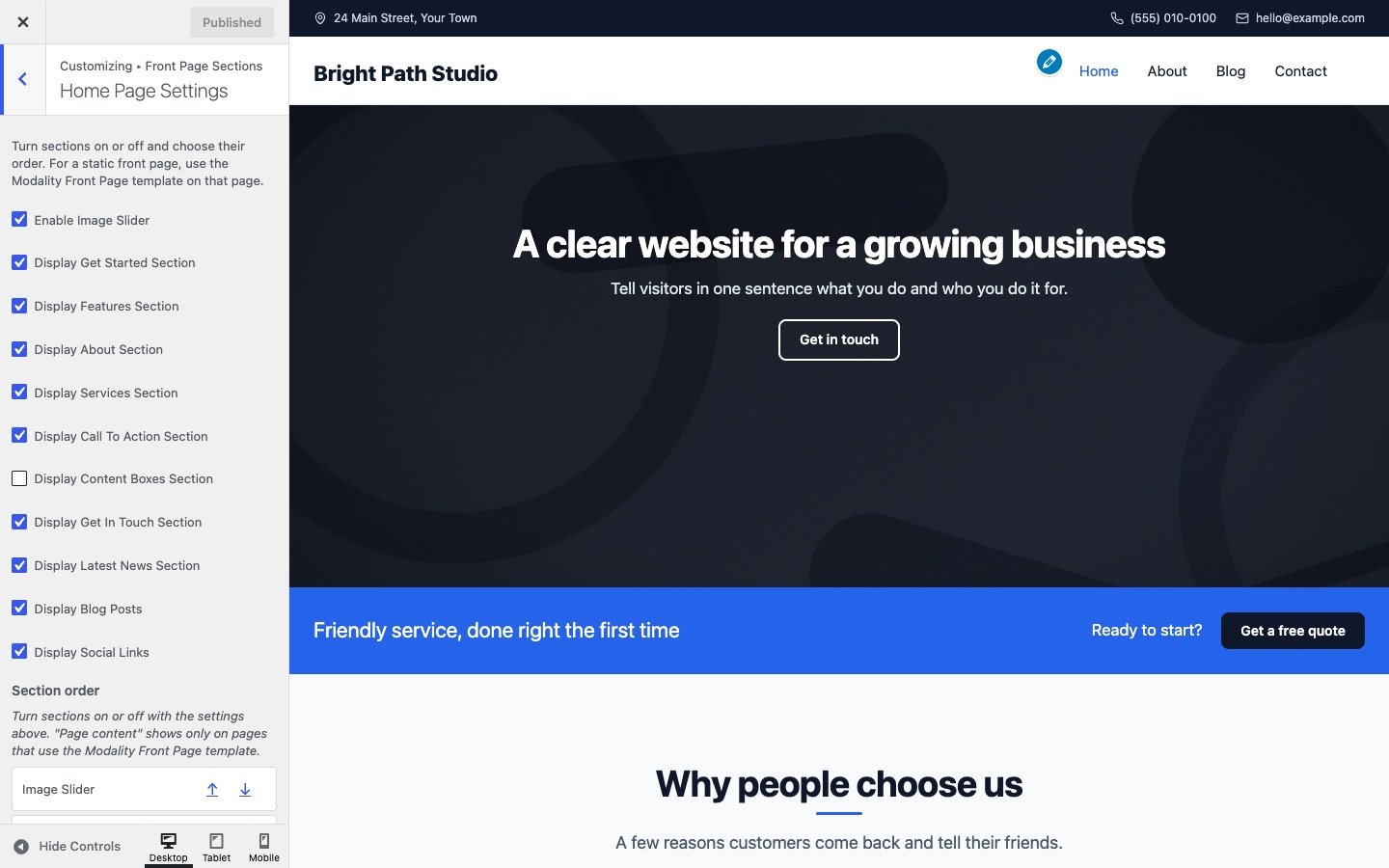
Every section has its own Customizer section for its texts, images and colors. In the preview, hover over a section and click the pencil icon to jump straight to its settings.
The sections as blocks
Every section is also a block pattern. In the block editor, open the inserter, choose Patterns → Modality and add a hero, get started bar, features, about, services, call to action, content boxes, get in touch or latest news section to any page or post. Patterns are ordinary blocks, so you edit them right on the page.
Next: The image slider and Front page sections.