
Header, logo & menu
Modality documentation
Header, logo & menu
Browse the documentation
Everything above the page content is in Customize → Header & Menu.
Logo
- Upload an image logo in Site Identity → Logo. Set its size in Logo Settings → Image logo width, with a separate width for phones. Use 0 to show the image at its own size.
- Without an image, Modality shows the site title as a text logo. Logo Settings sets its font, size, weight, color and letter case, and can show the tagline underneath.
The top section
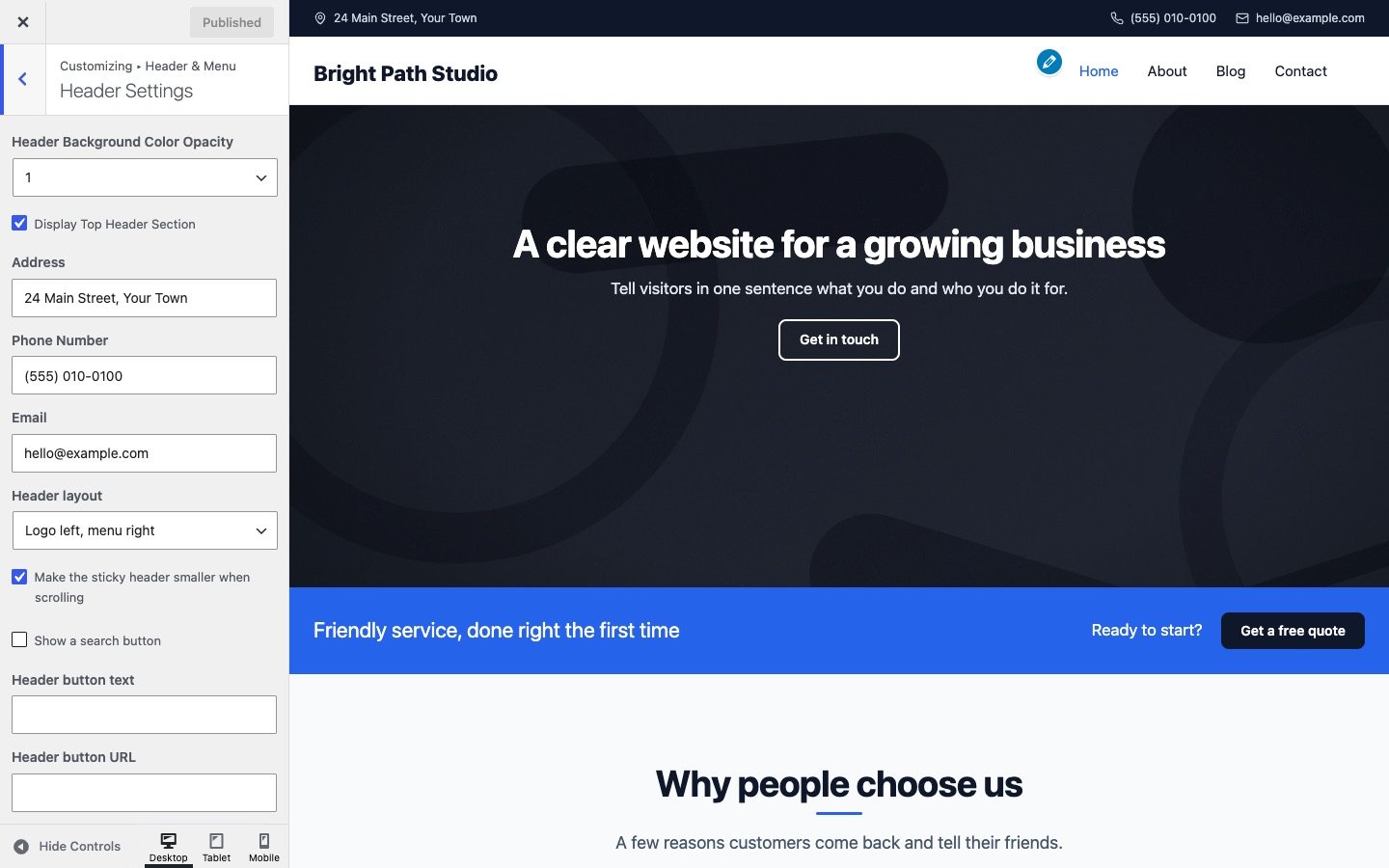
Display Top Header Section adds a thin bar above the header with your Address, Phone Number and Email. The phone and email become tap-to-call and tap-to-email links. You can also show your social icons there, and hide the bar on phones.
Header layout
- Header layout: logo left with the menu right, logo centered with the menu below, or logo left with the menu below.
- Show a search button adds a search icon that opens a search field.
- Header button text and Header button URL add a button at the end of the menu, for example “Book now” or “Get a quote”.
- Header Background Color and its opacity. A header image (Header Background Image) shows behind the whole header, under the color.
Sticky header
Turn on Sticky Menu in Navigation Settings to keep the header at the top while visitors scroll. Make the sticky header smaller when scrolling shrinks it once the page moves.
Menus
Modality has two menu locations: Primary Menu in the header and Footer Menu at the bottom. Assign them in Customize → Menus or Appearance → Menus. Dropdowns work with the mouse, by tap and with the keyboard, and open the other way when there is no room on the right.
Navigation Settings sets the menu font, size, letter case and colors, and Switch to the mobile menu below sets the screen width (768 px by default) where the menu turns into a menu button.