
Installation & first steps
Modality documentation
Installation & first steps
Browse the documentation
Modality is free on WordPress.org. It needs WordPress 6.4 or newer and PHP 7.4 or newer, and needs no plugins.
Install the theme
- In your dashboard go to Appearance → Themes → Add New.
- Search for Modality, click Install, then Activate.
- Modality updates from WordPress.org like any other theme, under Dashboard → Updates.
Start with the sample site
On a brand-new site, Appearance → Customize previews a starter site: a front page with a slider and sections, About, Blog and Contact pages, two sample posts, a menu and footer widgets. Nothing is saved until you click Publish, and you can change or delete every piece afterwards. On a site that already has content, WordPress skips the starter site.
The Modality page
Appearance → Modality is your starting point. It has four getting-started steps that open the right place in the Customizer (style preset, front page sections, header and menu, menus and widgets), plus links to this documentation and to support.
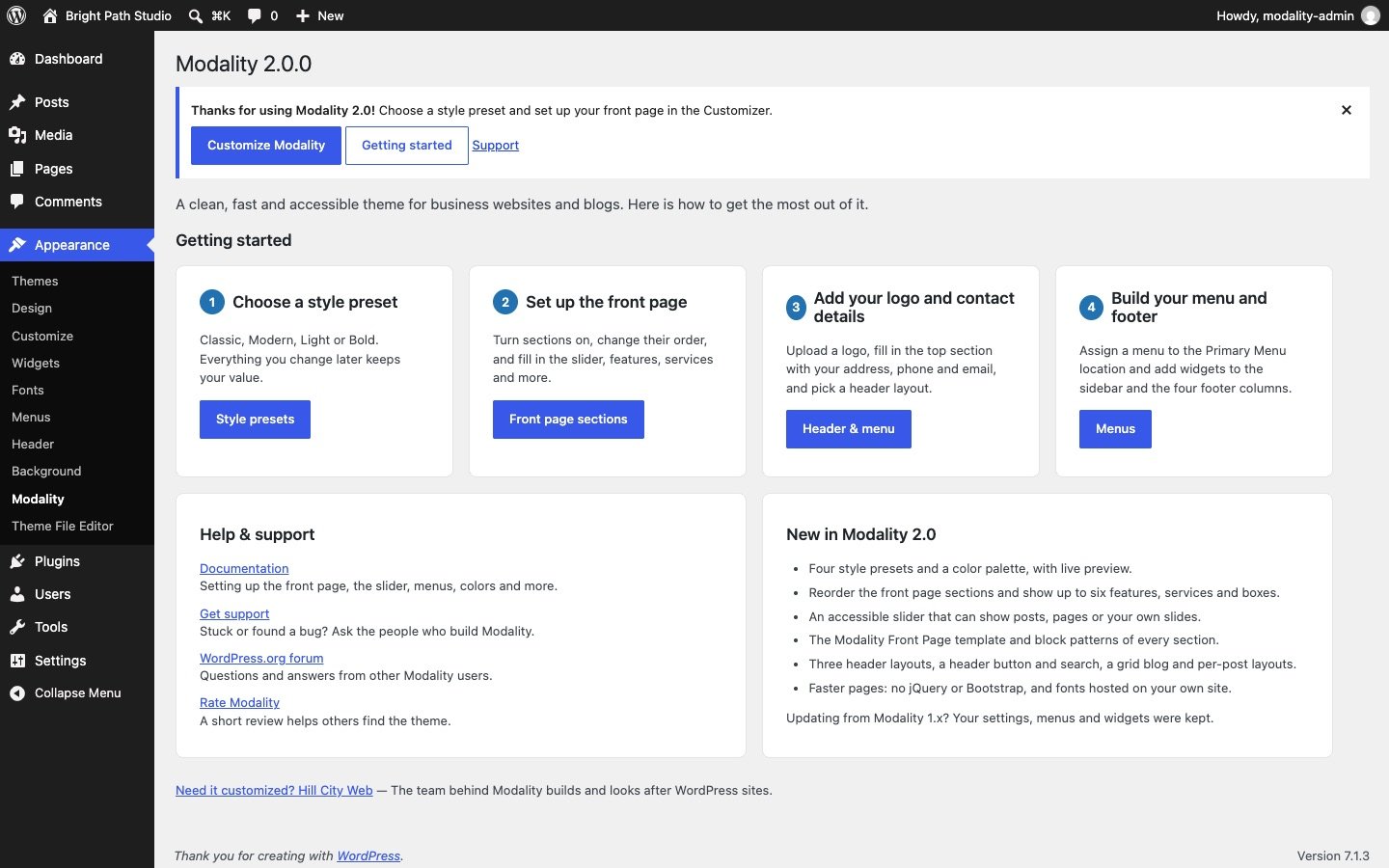
Where the settings are
Every Modality setting is in Appearance → Customize, in four panels:
- Theme Style: style preset, colors, typography, layout and general settings.
- Header & Menu: logo, the top section, header layout, the main menu and the header background image.
- Front Page Sections: which sections the home page shows, their order and their content.
- Blog & Footer: blog layout, single posts, social links, the footer and (with WooCommerce) the shop.
The Modality: Help & Support section at the top of the Customizer links back here.
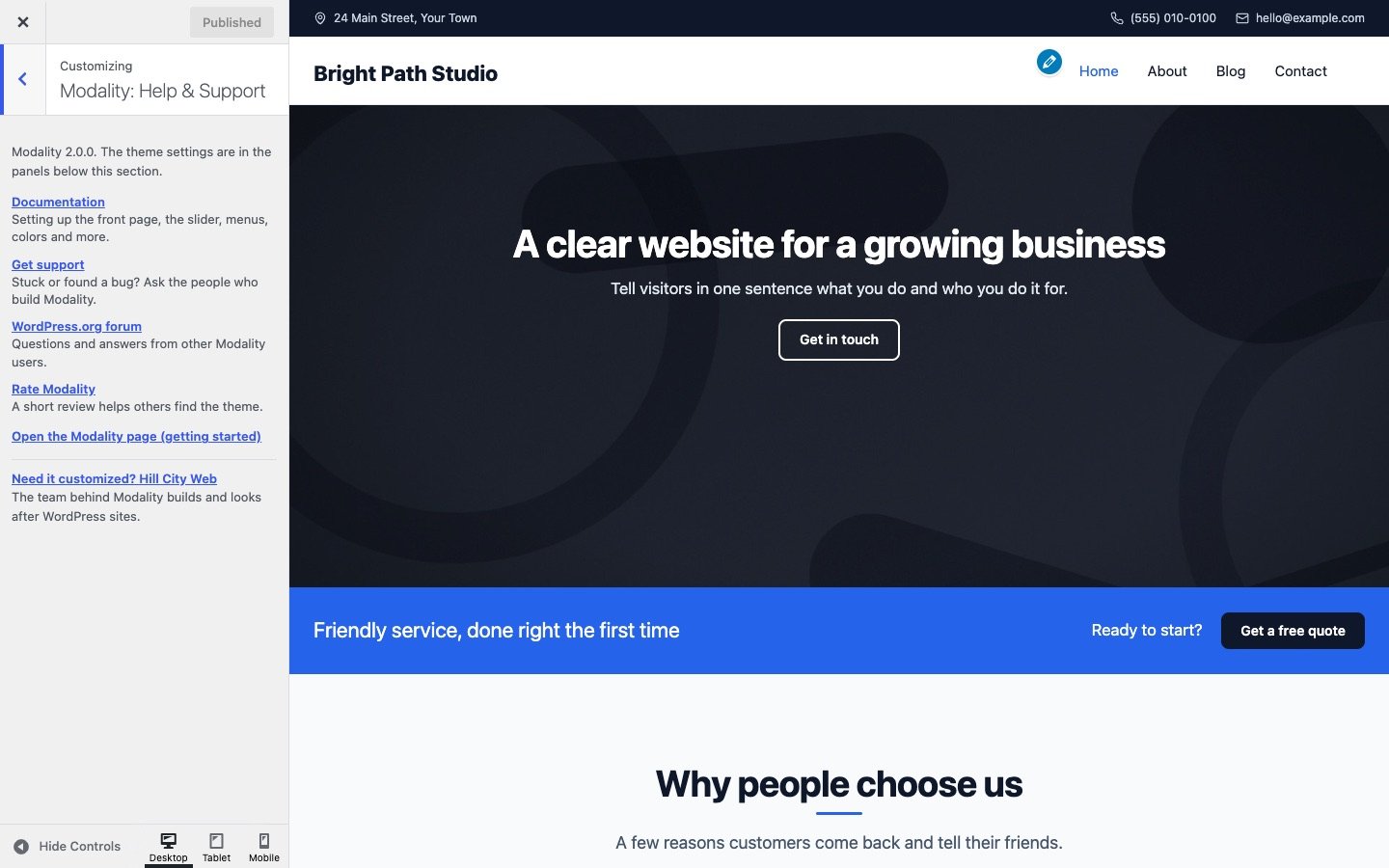
Five-minute setup
- Pick a look in Theme Style → Style Preset (see Style presets & colors).
- Add your logo in Site Identity, and your address, phone and email in Header & Menu → Header Settings.
- Assign a menu to the Primary Menu location in Menus.
- Turn on the front page sections you want in Front Page Sections → Home Page Settings and fill them in.
- Click Publish.